Explanation of the Python Desktop Application
This Python script creates a simple desktop application using Tkinter, which is Python’s built-in library for developing Graphical User Interface (GUI) applications. The purpose of this app is to accept user input and display the output within the same window, instead of showing popup message boxes. This approach makes the application cleaner and easier for beginners to understand.
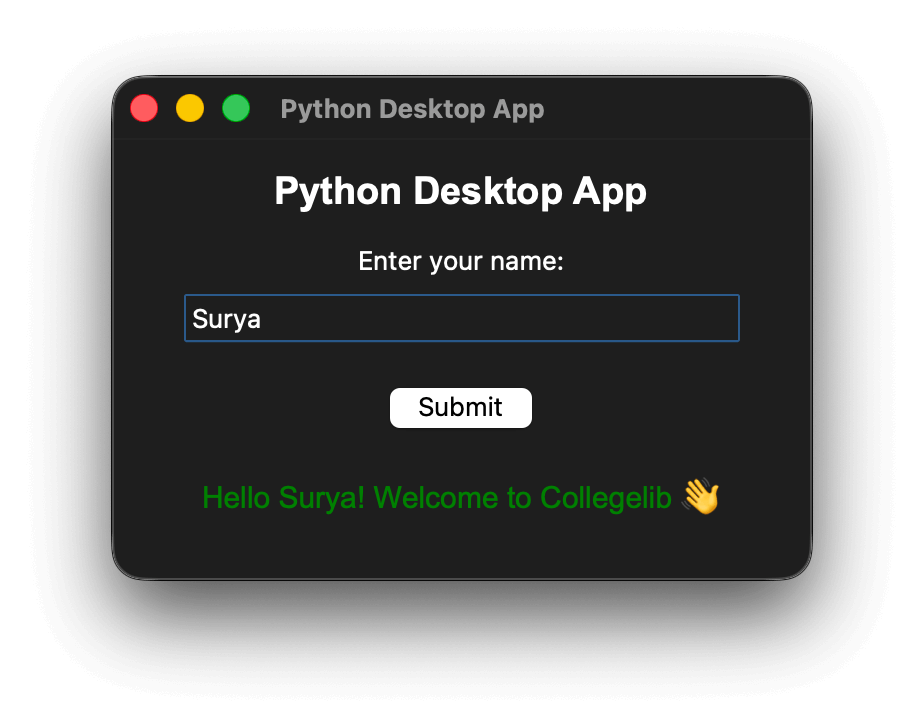
Application Logic
The program begins by importing tkinter and assigning it a shorter name for convenience. The main logic is written inside a function named show_message. This function is executed when the user clicks the Submit button.
Inside this function, the text entered by the user is read from the input box using the get method and stored in a variable. The program then checks whether the input is empty using a simple if-else condition. If the input field is empty, the application updates a label to display an error message in red colour. If the user has entered a name, the label is updated with a greeting message and the text colour changes to green. This update happens instantly on the same window using the config method.
Source code download: https://github.com/collegelib/python_desktop_application
How Tkinter Works
Tkinter follows an event-driven programming model. This means the application remains idle until the user performs an action such as clicking a button or typing text. The statement that creates the main window initialises the GUI environment. All GUI elements like labels, buttons, and input boxes are placed inside this main window.
Each element in Tkinter is called a widget. Labels are used to display text, Entry widgets accept user input, and Buttons trigger actions. When a button is clicked, Tkinter automatically calls the function assigned to it using the command parameter.
The pack layout manager is used to organise widgets inside the window. It places widgets vertically or horizontally with optional spacing. The mainloop keeps the application running continuously and listens for user interactions. Without this loop, the window would open and close immediately.
Updating Data on the Same Window
Instead of displaying messages in popup dialogs, this application updates the content of a Label widget. This method is commonly used in real-world desktop applications because it provides better user experience and avoids unnecessary interruptions. The label starts empty and gets updated dynamically based on user input.
Notes:
If the application window does not appear, the first step is to check whether Python is installed correctly and whether Tkinter is available in the system. If clicking the button produces no result, verify that the function name is correctly assigned to the button and that it is not being called immediately.
If the text does not change on the screen, ensure the correct label variable is being updated and that the config method is used properly. Spelling mistakes in widget names are a common issue for beginners.
If the window layout appears uneven or cluttered, adjusting padding values or rearranging the order of widgets can resolve the issue.